

-
RECOVERY SOFTWARE
-
Windows Recovery
Windows Recovey Software
Applicable For:
Windows Data Recovery Software
Disk Doctors Windows Data Recovery is much more then an simple undelete software or a file recovery program. Its versatility begins when other software fails to recover or even is not able to display data... Read more >>
Regular Price: $129.97Applicable For:
Data Recovery Suite (for Win)
Disk Doctors Windows Data Recovery is much more then an simple undelete software or a file recovery program. Its versatility begins when other software fails to recover or even is not able to display data...Read more >>
Regular Price: $249.97Applicable For:
NTFS Data Recovery Software
Use Disk Doctors NTFS Data Recovery software to recover data from NTFS, NTFS5, drives as well as it supports recovery from dynamic drives created on NT/2000/XP/2003 platforms. Recovering data using ...Read more >>
Regular Price: $89.97Applicable For:
FAT Data Recovery Software
Disk Doctors FAT Data Recovery Software will of course recover lost or damaged data on any computer utilizing the Windows File Allocation Table (FAT16, FAT32) systems. It supports file recovery ...Read more >>
Regular Price: $79.97Applicable For:
Photo Recovery Software
Disk Doctors Photo Recovery (Win) can recover data from all camera flash memory cards including Compact Flash Card (CF), Smart Media Card, Secure Digital Card (SD), Multi-Media... Read more >>
Regular Price: $49.97Applicable For:
Instant File Recovery Software
Disk Doctors Instant File Recovery Software will easily recover deleted files emptied from your Windows Recycle Bin. it will also allow you to quickly recover files lost due to errors such as accidental formatting...Read more >>
Regular Price: $69.97Recover Files Deleted....
Undelete Recovery Software
Disk Doctors Undelete is the world's fastest and most reliable undelete software. It utilizes a very easy to operate interface and contains powerful functions that allow anyone...Read more >>
Regular Price: $49.97 -
Mac Recovery
MAC Recovey Software
Applicable For:
Mac Data Recovery Software
Disk Doctors Mac Data Recovery software recovers lost and deleted data from HFS+, HFSX file systems on Mac OS X. Data loss is not a strange term for people working on Mac...Read more >>
Regular Price: $179.97Applicable For:
Data Recovery Suite (for Mac)
Disk Doctors Windows Data Recovery is much more then an simple undelete software or a file recovery program. Its versatility begins when other software fails to recover or even is not able to display data...Read more >>
Regular Price: $259.97Applicable For:
NTFS Data Recovery Software (for Mac)
Use Disk Doctors NTFS Data Recovery software to recover data from NTFS, NTFS5, drives as well as it supports recovery from dynamic drives created on NT/2000/XP/2003 platforms. Recovering data using ...Read more >>
Regular Price: $99.97Applicable For:
FAT Data Recovery Software
Disk Doctors FAT Data Recovery Software will of course recover lost or damaged data on any computer utilizing the Windows File Allocation Table (FAT16, FAT32) systems. It supports file recovery ...Read more >>
Regular Price: $89.97Applicable For:
Photo Recovery Software (for Mac)
Disk Doctors Photo Recovery (MAC) can recover data from all camera flash memory cards including Compact Flash Card (CF), Smart Media Card, Secure Digital Card (SD), Multi-Media... Read more >>
Regular Price: $69.97 -
Photo Recovery
Photo Recovey Software

Applicable For:
Photo Recovery Software
Disk Doctors Photo Recovery (Win) can recover data from all camera flash memory cards including Compact Flash Card (CF), Smart Media Card, Secure Digital Card (SD), Multi-Media... Read more >>
Regular Price: $49.97Applicable For:
Photo Recovery Software (for Mac)
Disk Doctors Photo Recovery (MAC) can recover data from all camera flash memory cards including Compact Flash Card (CF), Smart Media Card, Secure Digital Card (SD), Multi-Media... Read more >>
Regular Price: $69.97 -
Phone & Tablet
Phone & Tablet Recovery
Applicable For:
iOS Data Recovery Software
Disk Doctors iOS Recovery, makes use of low level flash file system.Low level flash file system keeps multiple versions of the same file....Read more >>
Regular Price: $49.97 Discount: $20.00" You Pay: $29.97Applicable For:
iOS Data Recovery Software
Disk Doctors iOS Recovery, makes use of low level flash file system.Low level flash file system keeps multiple versions of the same file...Read more >>
Regular Price: $69.97 Discount: $40.00" You Pay: $29.97Applicable For:
Android Data Recovery Software
Disk doctors Android Data Recovery Software Support recovering, accidentally deleted photos, videos or other files. This software can be used on Windows and Mac ...Read more >>
Regular Price: $34.97 Discount: $5.00" You Pay: $29.97Applicable For:
Android Data Recovery Software
Disk doctors Android Data Recovery Software Support recovering, accidentally deleted photos, videos or other files. This software can be used on Windows and Mac ...Read more >>
Regular Price: $34.97 Discount: $5.00" You Pay: $29.97 -
E-Mail Recovery
E-Mail Recovery Software

Applicable For:
Email Recovery Software
Disk Doctors Email Recovery (.dbx) software is a tool designed for recovering accidentally deleted Outlook Express email messages from any "dbx / mbx" archive or to repair ...Read more >>
Regular Price: $69.97 Discount: $20.00" You Pay: $49.97}Applicable For:
Outlook Mail Recovery
Disk Doctors Outlook Mail Recovery (.pst) is a powerful and efficient Microsoft Outlook recovery tool. The primary function is recovery of (.pst) files for Microsoft Outlook... Read more >>
Regular Price: $149.97Applicable For:
Smart Outlook Email Backup
Use Disk Doctors Smart E-mail Backup to Migrate and Backup Outlook Emails & settings. Migrate your older version of Microsoft Outlook to newer version OR migrate from Windows XP / Vista to...Read more >>
Regular Price: $39.97 -
UNIX Recovery
UNIX Recovery Software

Applicable For:
Linux Data Recovery Software
Disk Doctors Linux Data Recovery software is a user-friendly tool that allows you to recover data from the Linux Ext2, Ext3 & Ext4 File System created from on any Linux Distribution ...Read more >>
Regular Price: $99.97Applicable For:
UNIX Data Recovery Software
Disk Doctors UNIX Recovery (Solaris) is simple yet powerful and easy to use application for UFS file system supported by Sun Solaris. The software has been designed to provide... Read more >>
Regular Price: $299.97Applicable For:
XFS Data Recovery Software
Disk Doctors XFS Data Recovery software works for XFS file system only and is not targeted to any particular operating system due to wide support of XFS with various UNIX and Linux operating systems...Read more >>
Regular Price: $199.97 -
VM-XEN Recovery
Applicable For:
VM Recovery (XenServer)
Support recovering, Citrix XenServer VMs, Support recovering VHDs from Citrix XenServer, Support saving VHDs as...Read more >>
Regular Price: $299.97
-
Windows Recovery
-
SYSTEM UTILITIES
-
Drive Clone
Applicable For:
Drive Cloning Software
Drive Cloning, can help you make a clone of your hard drive or make a disk image that you can use to restore your data. Drive Image's clone option creates an exact replica of the drive. Cloning is great way to ...Read more >>
Regular Price: $39.97 -
Drive Manager
Applicable For:
Drive Manager Software
Disk Doctors Drive Manager in itself holds a number of recovery methods and techniques which makes it unique and robust recovery software. Another very important feature of this tool is ...Read more >>
Regular Price: $39.97
-
Drive Clone
-
DATA SECURITY
-
File Shredder
Applicable For:
File Shredder Utility
When a file is deleted either by simple delete or by using Shift+Del keys, it is not completely wiped out from the computer. Windows Operating System just removes the deleted file entry from the directory...Read more >>
Regular Price: $49.97 -
Data Sanitizer
Applicable For:
Data Sanitizer Software
Disk data wipe or erasing ensures privacy. Operating system's default delete function does not delete the entire file. To erase the drive beyond recovery certain software procedures are necessary...Read more >>
Regular Price: $39.97 -
Crypto - Secure Backup & Recovery
Applicable For:
Disk Doctors Drive SOS
Drive SOS, part of the Drive Manager package, is designed to precisely monitor your hard drive functions, predict potential failures and get the most out of your drive. SOS is your first line of defense in the event of a potential drive failure. If Drive SOS does predict a hard drive failure, you will need to make a backup and replace the damaged hard driveRead more >>
Regular Price: $0.00
-
File Shredder
- RECOVERY SERVICES
- BUNDLE OFFERS
- STORE
-
SUPPORT
-
Product Activation
Product Activation
Disk Doctors online activation system helps you to activate your's software copy online and without any hassel. You just need to enter your purchase order ID that is emailed to you when you purchase the software first time and the....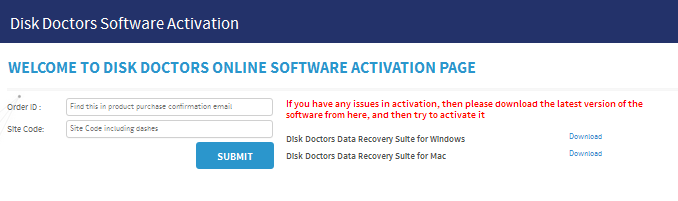
-
Submit a Ticket

Disk Doctors Help Desk
Disk Doctors online help desk is availabe for the cupport our valuable customers 24/7. Submit your ticket to our help desk and get an immediate responce from our support team ....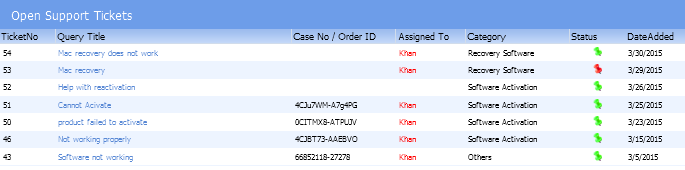
-
Knowledge Base

Knowledge Base
Search for your question or problem in our extensive knowledge base section using topics and keywords. The Knowledge Base has many product specific articles, created by Disk Doctors Support professionals who have resolved issues for customers. It is regularly updated, expanded, and refined to ensure that you have access to the very latest information.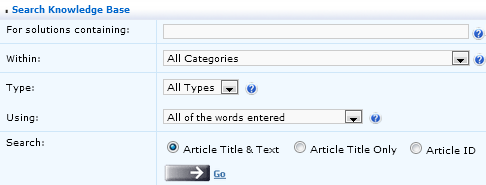
- Product Tutorials
- FAQ's
-
Product Activation
-

 Installation Guide


















Frequently Asked Questions
General FAQ
-
How do I place an order or obtain pricing information for volume
licenses?
-
Can I use a purchase orders to buy the software?
-
Do you accept orders by phone?
-
When will I receive my package?
-
Is your shopping system secure?
-
What forms of payment are accepted by Disk Doctors?
-
How do I place an order?
-
What is my order status?
-
How do I contact customer services?
-
Do you provide any guarantee of recovery results?
-
I had previously purchased software from you, now I need buy
another, can I get discount?
-
Who is the vendor of the software?
-
What is the difference between the demo version and the full
version?
-
Refund Policy
-
How to install Disk Doctors Softwares ?
-
How to Un-Install Disk Doctors Softwares ?
-
Can i recover bat iso exe using digital media recovery
-
Corrupt drive partition software recovery
-
Crashed hard drive recovery software
-
Data recovery off of a corrupted flash drive or sd card
-
Data recovery software or services
-
Deleted email recovery software
-
Deleted email recovery
-
Deleted file recovery software
-
Deleted iphoto recovery
-
Deleting file permanently
-
Erase data from hard drive
-
Formatted laptop hard drive recovery
-
Hard drive cloning software
-
How to recover accidentally deleted word document file
-
Importing repaired outlook 2003 pst file to outlook 2007
-
Linux data recovery on unix system
-
Lost photos recovery network storage device
-
Raid 5 array recovery
-
Recover camcorder video files
-
Recover data from formatted partition
-
Recover -data from sun solaris
-
Recover deleted files mac
-
Recover lost ntfs drive data after reformatted to fat32
-
Recover lost video photos from digital video camera sd card
-
Recover music and photos from ipod
-
Recover outlook express emails
-
Recover windows vista mail
-
Recovering data quick format
-
Recovering old financial records off of a fat32 drive
-
Red hat linux recovery
-
Saving drive partition scan information file
-
Slave hard drive recovery
-
Software error failed to open drive
-
Undelete files nas drive
Linux Data Recovery FAQ
-
How to recover data from my Linux volume when Disk Doctors Linux
Recovery software works under Windows?
-
Is it possible to recover deleted files from Ext3FS / Ext2FS?
-
How disk cloning can be useful for data recovery?
-
How disk imaging can be useful for data recovery?
-
I’ve accidentally used “fsck” command to check the volume for errors, now I am unable to view contents of the volume, is recovery possible?
-
I've repartitioned my drive and installed Windows over my Linux volume, how do I recover data?
-
How to install Linux Data Recovery Software?
- How to Un-Install Linux Data Recovery Software?
Outlook Express Recovery (.dbx) FAQ
-
What is a .dbx file?
-
What is dbt file? How can i recover emails from such files?
-
What is mbx file? How can i recover emails from such files?
-
What is the store path of Microsoft Outlook Express?
-
How to locate dbx files on my hard drive?
-
I've used the compact folder and once the process is over, all of my emails are lost from my Inbox. Is recovery possible using Disk Doctors Email Recovery (.dbx)?
-
How to install Outlook Express Email Recovery Software?
-
How to Un-Install Outlook Express Email Recovery Software?
Outlook Mail Recovery (.pst) FAQ
-
What is Disk Doctors Outlook Mail Recovery for?
-
What versions of Outlook does the software support?
-
What is the default store location of .pst file?
-
Does your software recover .pst file larger than 2GB?
-
I have tried the demo version of your software. How exactly
will I know that the full version will be able to restore all the data displayed
in the demo version?
-
Does your software require Microsoft Outlook installed
in the system to recover .pst files?
-
Does your software recover password protected files?
-
What kind of compressions does the software support?
-
I have deleted my .pst file by mistake. Can your software recover
my lost .pst file?
-
How to install Disk Doctors Outlook Mail Recovery ?
-
How to Un-Install Disk Doctors Outlook Mail Recovery ?
Data Sanitizer FAQ
-
Which operating systems does Eraser support?
-
Why 9 types of sanitizing standards?
-
Why does it take so long to erase a drive? I know some software
which erase fast!
-
I have been used Disk Doctors Data Sanitizer to overwrite all
sensitive data from my drive. Is it really gone now?
-
Using Disk Doctors Data Sanitizer can I wipe selected files & folders?
-
How to install Disk Doctors Data Sanitizer ?
-
How to Un-Install Disk Doctors Data Sanitizer ?
NTFS Data Recovery FAQ
-
Using Disk Doctors NTFS Data recovery software, can I recover data from FAT logical drive?
-
What components are in Disk Doctors Windows Data Recovery?
-
Is this software a complete solution for my data recovery needs?
-
I accidentally reformatted my logical drive from NTFS to FAT32. Which
component of Disk Doctors Windows Recovery software is ideal to recover data?
-
How do I recover data from drive having BAD sectors?
-
How Disk Imaging and Cloning could be beneficial?
-
Which is the correct license option of Disk Doctors NTFS Data Recovery
Software suitable for me?
-
After deleting a folder I accidentally defragged my partition, is
it possible to recover data from this drive now?
-
Is it possible to recover data from Floppy, CD, DVD or a ZIP drive
using your software?
-
Is it possible to recover data from a drive which is not recognized
by the BIOS of the PC?
-
I deleted some important files from Windows Explorer and even emptied
them from recycle bin, how do I recover data?
-
I have a data loss situation. What precautions I should follow before
and during restoring data? link to KB as well
-
I have only one logical drive on my system hard disk and I need to
recover some deleted files urgently, how do I use your software to recover them?
-
Where can we save recovered files?
-
After scanning a logical drive completely using your software, it
shows much less of the deleted files. What can I do?
-
I have a laptop which is not booting, how do I recover from it?
-
Why do I see more files after scanning my drive with your software
than the files I see on Windows explorer?
-
Does Disk Doctors NTFS Data Recovery support advanced recovery in NTFS partition?
-
Does your software work on RAID 0?
-
How to install NTFS Data Recovery Software?
-
How to Un-install NTFS Data Recovery Software?
FAT Data Recovery FAQ
-
Using Disk Doctors FAT Data recovery software, can I recover data from NTFS logical drive?
-
What all components are in Disk Doctors Windows Data Recovery?
-
Is this software a complete solution for my data recovery needs?
-
I accidentally reformatted my logical drive from FAT32 to NTFS which component of Disk Doctors Windows Recovery software is ideal to recover data?
-
How do I recover data from drive having BAD sectors?
-
How Disk Imaging and Cloning could be beneficial?
-
Which is the correct license option of Disk Doctors FAT Data Recovery
Software suitable for me?
-
After deleting a folder I accidentally defragged my partition, is
it possible to recover data from this drive now?
-
Is it possible to recover data from Floppy, CD, DVD or a ZIP drive
using your software?
-
Is it possible to recover data from a drive which is not recognized
by the BIOS of the PC?
-
I deleted some important files from Windows Explorer and even emptied
them from recycle bin, how do I recover data?
-
I have a data loss situation. What precautions I should follow before
and during restoring data? link to KB as well
-
I have only one logical drive on my system hard disk and I need to
recover some deleted files urgently. How do I use your software to recover them?
-
Where can we save recovered files?
-
After scanning a logical drive completely using your software, it
shows much less of the deleted files. What can I do?
-
I have a laptop which is not booting, how do I recover from it?
-
Why do I see more files after scanning my drive with your software
then the files I see on Windows explorer?
-
How effectively this software recovers data when there is a corruption or loss of FAT copies?
-
Does your software work on RAID 0?
-
How to install FAT Data Recovery Software?
-
How to Un-install FAT Data Recovery Software?
Undelete FAQ
-
Is it possible to recover files emptied from recycle bin?
-
How to undelete files on NTFS partition?
-
Can I recover accidentally deleted files from my FAT32 partition?
-
Can I recover accidentally deleted folder with files and subfolders all at once?
-
How to restore data from lost partitions?
-
Can I recover data from laptop drives?
-
Can I use Disk Doctors Undelete software to recover data from CD's, CDR's and DVD's?
-
Can I preview the file before recovery?
-
Can I exclude certain file while saving?
-
Is it possible to recover lost files to a CD-R/RW or DVD-R/RW drive?
-
How to install Disk Doctors Undelete software?
-
How to Un-Install Disk Doctors Undelete software?
Digital Media Recovery FAQ
-
What is Disk Doctors Photo Recovery (Win) software?
-
How many types of file format does the software support?
-
I have accidentally deleted my favorite music and video files from
my hard drive. Can I use your software to recover them?
-
I have accidentally deleted some photos from my digital camera. Can I recover them?
-
I accidentally formatted my SD card. What are the chances of getting
my photos back? Can I recover them?
-
Will the software modify original files in my memory card?
-
Can I restore the data to same memory card from which I am recovering?
-
I used the software to recover digital files from my card. But the software does not show the preview. Should I recover it?
-
How to install Disk Doctors Photo Recovery software?
-
How to Un-Install Disk Doctors Photo Recovery software?
File Shredder FAQ
-
Why do we need file shredder software?
-
Is it possible to recover files, once it is wiped using Disk Doctors File Shredder?
-
Why do shredding system files not remove all the selected files?
-
Why does the software take a long time to load the drives?
-
Why some-times it takes long to shred Recycle Bin?
-
Can I Shred logical drives using your software?
-
What all Operating Systems supported by File Shredder?
-
How to install File Shredder Software?
- How to Un-Install File Shredder Software?